
An old laptop does not always need to be replaced. If it still turns on reliably, a few careful changes can make web browsing, writing, studying, streaming, and everyday office work feel noticeably smoother.
The best approach is to start with free software fixes, identify the real bottleneck, and consider hardware upgrades only when they make financial sense. This guide explains how to speed up an old laptop without relying on risky registry cleaners, miracle optimizer apps, or vague “one-click” fixes.
Quick answer: Restart and update the laptop, disable unnecessary startup apps, remove unused software, free storage space, scan for malware, reduce browser extensions, and check for overheating. If the machine still uses a mechanical hard drive, replacing it with a compatible SSD is often the most meaningful hardware upgrade. Adding RAM can also help if memory usage is consistently high.
Affiliate disclosure: PickLoft may earn a commission from qualifying purchases made through links in this guide, at no extra cost to you. Our recommendations remain based on practical suitability and value.
Before You Start: Back Up Important Files
Back up photos, documents, passwords, and project files before uninstalling software, changing hardware, resetting the operating system, or working inside the laptop. Use an external drive or a reputable cloud service, then confirm that you can open the copied files.
Do not download random “PC cleaner,” driver updater, or RAM booster utilities. Some add more background processes, display misleading warnings, or introduce unwanted software.
Why Is an Old Laptop So Slow?
A laptop usually becomes slow for several reasons rather than one single fault:
- Too many programs launch at startup.
- The internal drive is almost full.
- A mechanical hard drive has become the main bottleneck.
- The laptop has too little RAM for modern apps and browser tabs.
- Background updates or malware consume resources.
- Dust or blocked vents cause overheating and thermal throttling.
- The battery or power settings limit performance.
- Modern websites and software demand more than the original hardware was designed to handle.
- An unsupported operating system no longer receives normal security updates.
The steps below move from safe, free fixes to upgrades and replacement decisions.
1. Restart the Laptop and Install Legitimate Updates
If you normally close the lid instead of restarting, background processes can accumulate. Save your work and perform a full restart.
Next, install available operating-system and app updates from official sources. On Windows 11, open Settings > Windows Update. On a Mac, open System Settings > General > Software Update. Updates can fix bugs, security problems, and driver issues, although a very old device may not support the newest operating system.
Avoid unofficial Windows builds or unsupported operating-system workarounds on a computer that stores sensitive information.
2. Find What Is Using the CPU, Memory, and Disk
Before deleting files or buying parts, identify the bottleneck.
On Windows
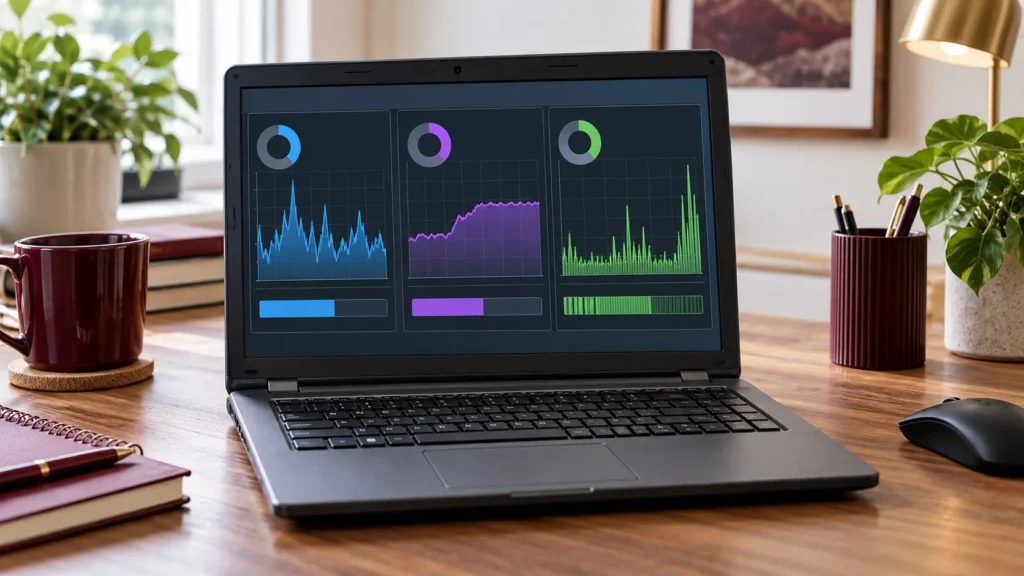
Press Ctrl + Shift + Esc to open Task Manager. In the Processes tab, select the CPU, Memory, or Disk column to sort by usage. A temporary spike is normal, but an app that remains near the top while the computer is idle deserves attention.
On macOS
Open Applications > Utilities > Activity Monitor. Review the CPU and Memory tabs. Apple specifically recommends Activity Monitor when an app may be consuming more memory than the Mac can comfortably provide.
Do not end a process simply because its name is unfamiliar. Search the exact process name first, especially if it belongs to Windows, macOS, security software, or a hardware driver.
3. Disable Unnecessary Startup and Login Apps
Too many startup apps make an old laptop feel slow immediately after sign-in.
In Windows 11, open Settings > Apps > Startup and turn off nonessential apps. You can also use the Startup apps section in Task Manager. Leave security tools, touchpad software, audio utilities, and hardware-related services enabled unless you understand their purpose.
On a Mac, go to System Settings > General > Login Items & Extensions. Remove items you do not need at every login and review apps allowed to run in the background.
Messaging apps, game launchers, meeting software, cloud utilities, and vendor update tools are common candidates—but disable only what you recognize.
4. Uninstall Apps You No Longer Use
Old laptops often contain trial software, duplicate utilities, abandoned games, and programs that continue running background services.
On Windows, go to Settings > Apps > Installed apps. On macOS, uninstall apps using the developer’s instructions or move standard apps from Applications to the Trash.
Do not remove drivers, Microsoft Visual C++ packages, system components, or unfamiliar vendor utilities without checking what they do. Removing an app is useful when it also removes a background service—not merely because it frees a small amount of storage.
5. Free Up Storage Space Safely
An almost-full drive leaves less room for updates, temporary files, browser caches, and virtual memory.
Windows users can open Settings > System > Storage and use Storage Sense to remove temporary files and old Recycle Bin contents. Review Downloads manually so important files are not deleted.
On a Mac, open System Settings > General > Storage to see which categories use the most space. Move large videos or archives to an external drive, remove duplicate downloads, and empty the Trash after checking its contents.
Keep some free space available rather than filling the drive to its limit. There is no universal magic percentage, but a drive that is continually almost full needs cleanup or larger storage.
6. Scan for Malware
Malware and unwanted browser software can consume CPU, memory, disk, and network resources.
On Windows, open Windows Security > Virus & threat protection and run a scan. Microsoft notes that malware can reduce performance by consuming CPU and disk resources. Keep real-time protection enabled unless another trusted security product is managing it.
On a Mac, update macOS and remove suspicious login items, browser extensions, configuration profiles, and apps you did not intentionally install. Be cautious with pop-ups claiming that your Mac is infected; do not call the phone number or install the advertised cleaner.
7. Make the Browser Lighter
For many older laptops, the browser is the heaviest everyday application.
- Close tabs you are not using.
- Remove unnecessary extensions.
- Stop websites from sending unwanted notifications.
- Avoid running several browsers simultaneously.
- Turn on the browser’s memory-saving or sleeping-tabs feature when available.
- Restart the browser occasionally.
If performance becomes poor only on one website, the problem may be that page—not the entire laptop. Video calls, ad-heavy pages, browser games, and many open documents can be demanding even on a clean system.
8. Check Power and Battery Settings
Windows laptops may reduce performance in battery-saving modes. In Windows 11, open Settings > System > Power & battery and review the power mode. A higher-performance mode can make the computer more responsive when plugged in, but it also increases power use, heat, and fan noise.
On any laptop, a failing battery or weak third-party charger can cause unexpected throttling. Use the correct charger specification. If the battery is swollen, stop using the laptop and seek professional service; do not press or puncture it.
9. Improve Cooling Without Damaging the Laptop
When a processor becomes too hot, it may lower its speed to protect the hardware.
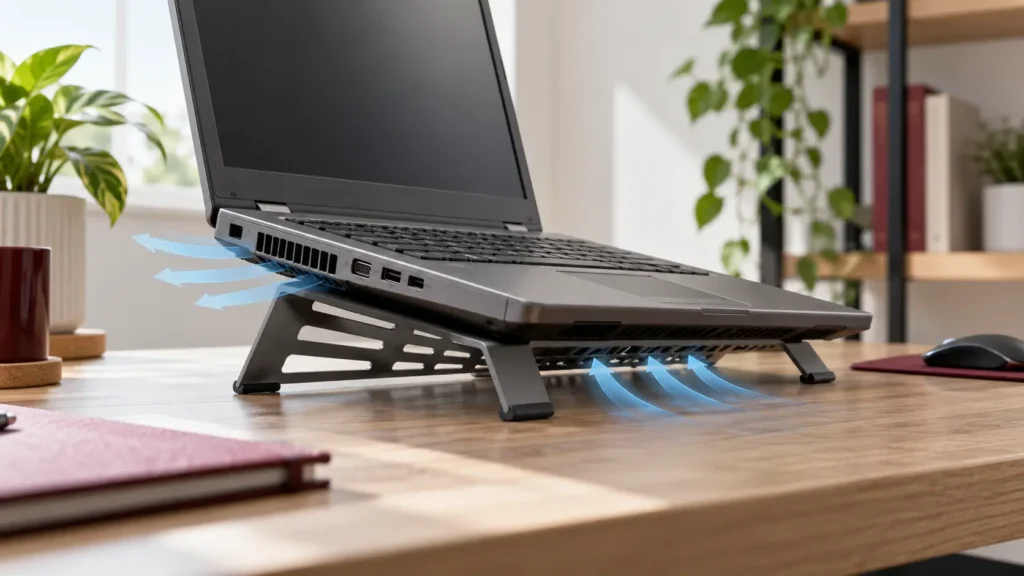
Use the laptop on a hard, flat surface rather than a bed or blanket. Turn it off, unplug it, and gently clear dust from the external vents. Do not force compressed air into a fan in a way that makes it spin excessively.
Internal cleaning and thermal-paste replacement can help some older machines, but disassembly varies by model and can damage clips, cables, batteries, or cooling components. Follow the manufacturer’s service manual or use a qualified technician.
10. Replace a Mechanical Hard Drive With an SSD
If the laptop still uses a spinning hard disk drive, a compatible solid-state drive can dramatically improve boot times, app launches, file access, and overall responsiveness. It will not make an old processor faster, but it can remove the storage delay that makes the entire system feel sluggish.
Before buying, confirm:
- The correct drive type and size, such as 2.5-inch SATA or M.2
- Whether the laptop supports SATA or NVMe for an M.2 slot
- The maximum supported capacity, if the manufacturer specifies one
- Whether you will clone the old drive or perform a clean installation
- That your backup is complete
Some modern laptops use soldered storage that cannot be upgraded. Check the exact model number and service manual rather than relying on the brand name alone.
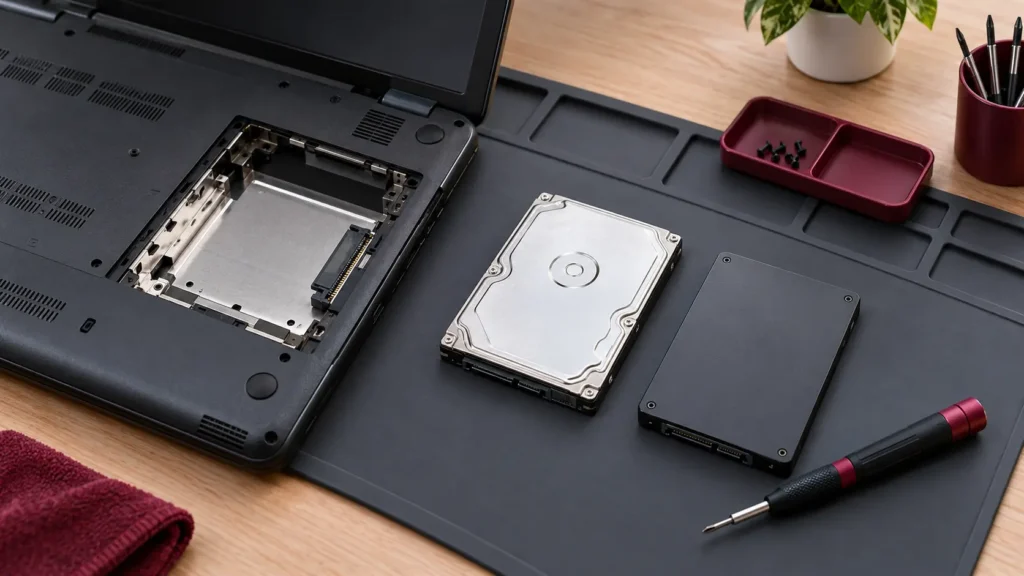
11. Add RAM If the Laptop Supports It
More memory helps when Task Manager or Activity Monitor shows consistently high memory pressure while you use normal apps. It is especially useful for many browser tabs, office multitasking, light photo editing, and older systems with only 4GB.
RAM must match the laptop’s supported generation, form factor, speed range, slot layout, and maximum capacity. Some laptops have soldered memory and cannot be upgraded. Use the manufacturer’s specifications or a reliable compatibility checker for the exact model.
An upgrade from 4GB to 8GB can improve basic multitasking, while 16GB is more comfortable for current everyday workflows. Extra RAM will not compensate for an extremely weak processor or unsupported software.
12. Reset or Reinstall the Operating System as a Last Software Fix
If the laptop remains slow after cleanup and its hardware is healthy, a clean operating-system installation can remove years of software clutter. This is a last software step, not the first.
Back up files, record license information, confirm that installers are available, and make sure the manufacturer provides compatible drivers. Use Microsoft or Apple’s official recovery tools. A reset or reinstall erases apps and may erase personal files depending on the option selected.
Do not reinstall an unsupported operating system and assume the machine is secure merely because it feels faster.
How to Speed Up an Old Laptop on Windows 11, Windows 10, or Windows 7
Windows 11
Use the main 12-step process above. Start with Task Manager, Startup apps, Storage Sense, Windows Security, and Windows Update. If the PC officially supports Windows 11 but performance is still poor, check whether an SSD or RAM upgrade is possible before replacing it.
Windows 10
Windows 10 support ended on October 14, 2025. The computer will still operate, but standard free security updates and technical support have ended. Performance cleanup may make it feel faster, but it does not solve the security lifecycle problem. Check Microsoft’s current options, hardware eligibility for Windows 11, or replace the device if it cannot run a supported system safely.
Windows 7
Windows 7 is long out of support and should not be treated as a secure everyday internet computer. Disabling more services or installing questionable “lightweight” builds is not a responsible fix. For offline legacy software, isolate the system and avoid sensitive data. For normal online use, migrate to a supported operating system or newer hardware.
HP, Dell, Lenovo, Acer, and ASUS: Does the Brand Change the Fix?
The core process is the same for an old HP, Dell, Lenovo, Acer, or ASUS laptop. What changes is hardware access, supported RAM, storage type, firmware, diagnostics, and driver availability.
Find the exact model or service tag, then use the manufacturer’s support page to check:
- BIOS and firmware updates
- Official drivers
- Built-in hardware diagnostics
- Battery health information
- RAM and storage specifications
- A maintenance or service manual
Avoid downloading drivers from generic third-party driver sites. A model family may contain several configurations, so “Dell Inspiron” or “HP Pavilion” alone is not specific enough for an upgrade purchase.
How to Make an Old Laptop Faster for Gaming
Software cleanup can improve consistency, but it cannot turn old integrated graphics into a modern gaming GPU.
For better results:
- Play while connected to the correct charger.
- Close browsers, launchers, and background recording apps.
- Lower resolution, textures, shadows, and effects.
- Cap the frame rate to a stable target.
- Install official graphics drivers supported by the laptop.
- Keep vents clear and monitor heat.
- Add RAM or an SSD only when compatible and when the game’s bottleneck justifies it.
If the processor or graphics chip is below a game’s minimum requirements, replacement is usually more sensible than spending heavily on accessories. See PickLoft’s laptop buying guidance for programming and video-editing laptop guide when your workload has outgrown basic hardware.
How to Speed Up an Old Mac Laptop
Start with Activity Monitor, remove unnecessary login items, free storage, update macOS to the newest version the Mac officially supports, and test without unnecessary browser extensions. An app with excessive memory or CPU use can make the whole Mac feel slow.
Upgrade options depend heavily on the model year. Many newer MacBooks have soldered memory and storage, while some older models allow an SSD or RAM upgrade. Confirm the exact model before buying parts.
If the Mac can no longer receive a supported macOS version, consider the security and software-compatibility limits before investing in repairs. Students comparing replacement options can use our guide to the best MacBooks for college students.
Should You Upgrade or Replace the Laptop?
| Situation | Best next step |
|---|---|
| Laptop uses a healthy mechanical hard drive | Consider a compatible SSD |
| Memory is constantly full and RAM is upgradeable | Add compatible RAM |
| Laptop is hot and fans run constantly | Clean vents; inspect cooling professionally |
| Battery is swollen | Stop using it and arrange safe service |
| Operating system is unsupported | Move to a supported OS or replace the laptop |
| Screen, hinges, battery, and motherboard all need repair | Replacement is often better value |
| CPU/GPU cannot run required apps | Replace rather than over-investing |
| Laptop handles writing and browsing after cleanup | Keep using it |
A seven-year-old laptop is not automatically too old. A business-class model with an SSD, enough RAM, and a supported operating system may still be useful. A newer low-end model with soldered storage and damaged hardware may be a worse repair candidate.
If replacement makes more sense, compare current options based on your real workload. Writers can start with our best laptops for writers guide.
What Can You Do With a Very Old Laptop?
A 10-year-old laptop may still work for writing, basic browsing, media playback, or offline tasks after an SSD upgrade and cleanup—provided it can run maintained, secure software.
A 20-year-old laptop is better treated as a retro-computing, collection, or offline legacy project. It should not store current passwords, financial data, or other sensitive information if its operating system and browser are unsupported.
Other responsible options include donating a working supported device, using a certified electronics recycler, or securely erasing the storage before disposal. Do not place a lithium battery in household trash.
Frequently Asked Questions
Can you make a 10-year-old laptop faster?
Yes, sometimes. Disabling startup apps, freeing storage, cleaning the cooling system, replacing a hard drive with an SSD, and adding compatible RAM can make a 10-year-old laptop more responsive. The result still depends on processor speed, hardware condition, upgradeability, and whether it can run a supported operating system.
Why is an old laptop so slow?
Common causes include too many startup apps, limited RAM, a nearly full or aging hard drive, demanding browser tabs, malware, overheating, background updates, and modern software that exceeds the hardware’s original capabilities.
Is a 7-year-old laptop too old?
Not necessarily. If it has healthy hardware, an SSD, adequate RAM, and a supported operating system, it may remain useful for everyday work. Replace it when repairs cost too much, critical parts are failing, or required software no longer runs securely.
What is the best upgrade for an old laptop?
For a laptop with a mechanical hard drive, a compatible SSD is often the most noticeable upgrade. If it already has an SSD but memory usage remains high, compatible RAM may help. Always check whether the storage or memory is soldered before buying.
How can I speed up an old Windows laptop for free?
Restart it, install supported updates, disable unnecessary startup apps, uninstall unused programs, free storage with built-in tools, scan for malware, reduce browser tabs and extensions, and keep the vents clear.
Will a factory reset make an old laptop faster?
It can help when years of software clutter, broken settings, or unwanted apps are causing the slowdown. It will not fix a failing drive, insufficient RAM, overheating, or an underpowered processor. Back up important files before resetting.
Do laptop cooling pads improve speed?
A cooling pad may help a laptop that is throttling because of heat, but it is not a substitute for clear vents, working fans, or proper internal maintenance. It will not significantly improve a laptop that is slow because of limited RAM or an old hard drive.
Is it safe to keep using Windows 10 or Windows 7?
Windows 10 reached end of support on October 14, 2025, and Windows 7 has been unsupported for years. A faster computer is not necessarily a secure computer. For normal online use, move to a supported operating system or supported hardware.
Final Verdict
The safest way to speed up an old laptop is to diagnose before spending. Begin with startup apps, storage cleanup, malware scanning, browser cleanup, and cooling. Then check whether the machine supports an SSD or RAM upgrade.
An upgrade is worthwhile when the laptop is physically sound, supports secure software, and still meets your needs. Replacement is the better choice when the operating system is unsupported, several major parts are failing, or the processor and graphics hardware cannot handle your required apps.